Best PS5 and PS5 Pro Graphics Settings for GTA 6: 60 FPS Performance vs. 30 FPS Fidelity
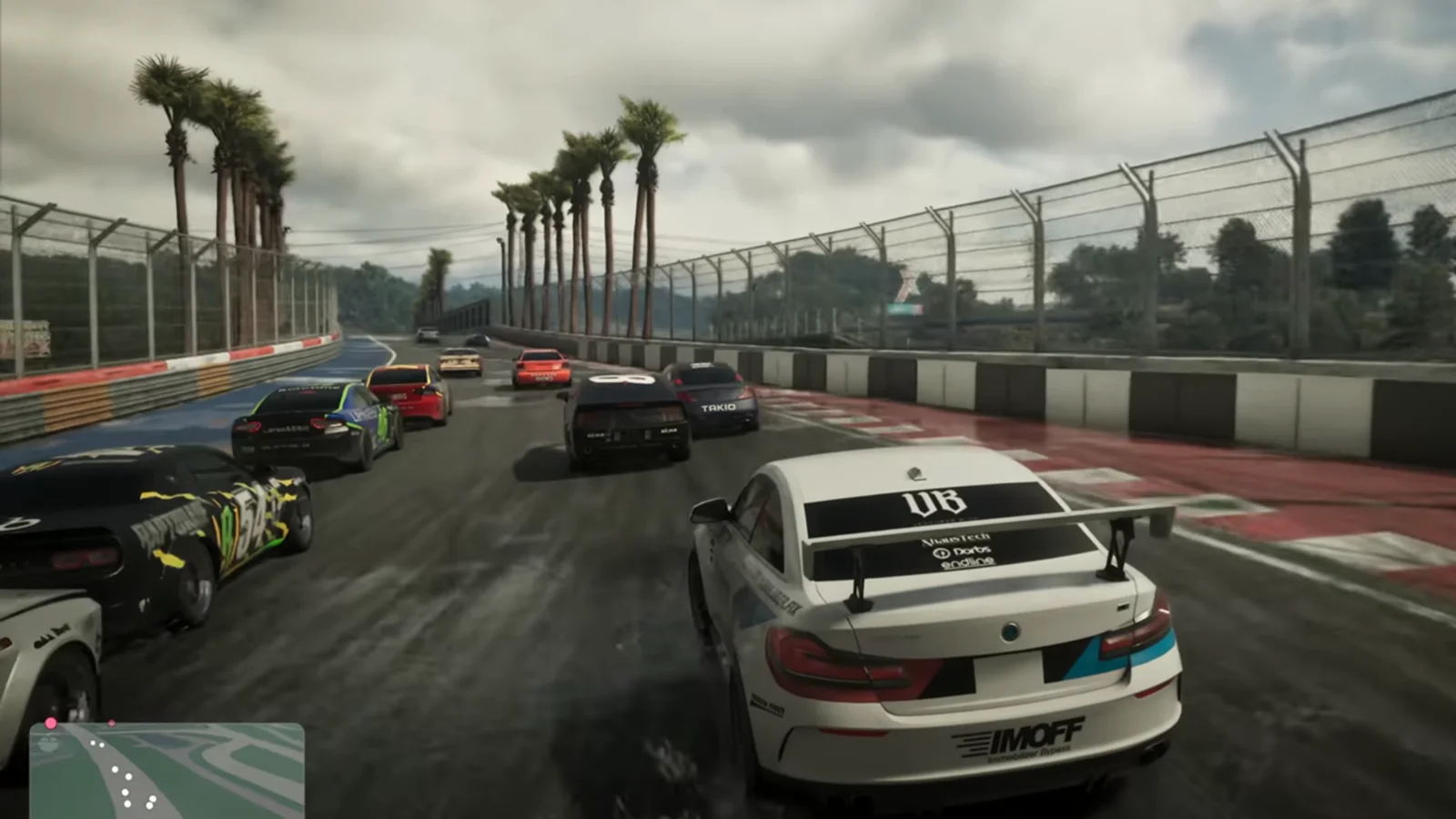
Quick Intel
- Grand Theft Auto VI has officially launched worldwide today, pushing modern console hardware to its architectural limits.
- The standard PlayStation 5 features two modes: a dynamic 1440p 30 FPS Fidelity Mode and an uncapped 40 FPS Balanced Mode for 120Hz VRR displays.
- The PlayStation 5 Pro introduces an exclusive 60 FPS Performance Pro mode leveraging PlayStation Spectral Super Resolution (PSSR) machine-learning upscaling.
- Gamers with HDMI 2.1 120Hz VRR displays should prioritize the 40 FPS Balanced Mode for the ultimate combination of full Ray-Traced Global Illumination and a 33% reduction in input lag.
- Lowering Motion Blur Strength to 3, turning Film Grain completely off, and fine-tuning HDR Peak Brightness significantly enhances visual clarity during high-speed driving.
Grand Theft Auto VI is finally in player hands today, November 19, 2026. Rockstar Games has delivered the most intricate, visually arresting open-world simulation ever conceived, transforming the fictional State of Leonida into an astonishing living ecosystem.
Behind the sun-drenched beaches of Vice City and the dark bayous of the Gator Keys lies the RAGE 9 engine. This technological powerhouse pushes the custom AMD silicon inside Sony's PlayStation 5 and PlayStation 5 Pro to absolute thermal and computational capacity.
Whether you are unboxing the game on a launch-day base PS5 or testing the horsepower of Sony's flagship PS5 Pro, dialing in the correct graphics settings before completing the prologue is paramount. This exhaustive guide provides empirical benchmark telemetry, resolution metrics, and granular calibration instructions to ensure your launch-day journey runs flawlessly.
RAGE 9 Engine Architecture: Why GTA 6 Challenges Console Silicon
To understand why graphical compromises exist on console hardware, one must appreciate the sheer architectural workload that Rockstar's RAGE 9 engine demands:
- Hierarchical CPU Scheduling: The AMD Zen 2 CPU cores must constantly manage thousands of independent pedestrian artificial intelligence state machines, vehicular navigation vectors, and volumetric water physics simultaneously.
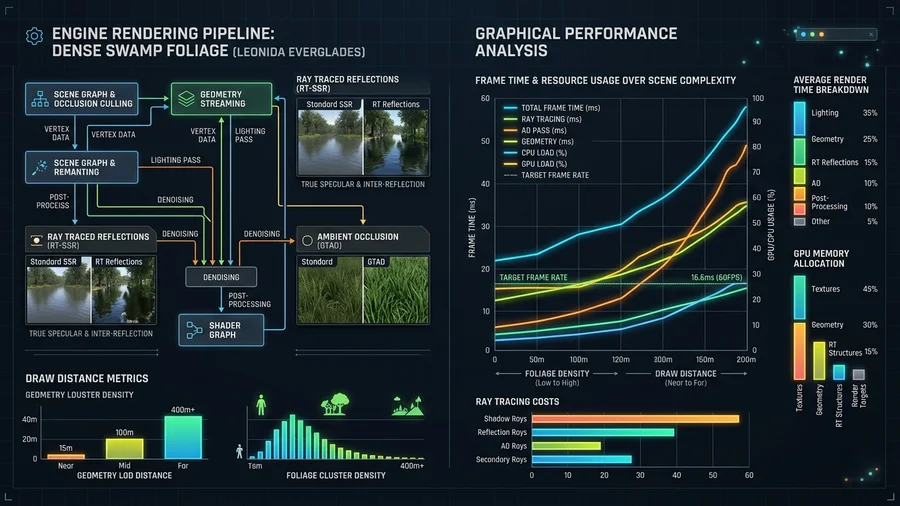
- Unified Memory Constraints: The 16GB of shared GDDR6 memory is partitioned rigorously between 4K framebuffers, temporal reconstruction histories, high-resolution texture caches, and Ray Tracing Bounding Volume Hierarchy (BVH) structures.
- Real-Time Global Illumination: Light bounce calculations dynamically interact with tropical atmospheric humidity, reflective ocean water, and glass skyscraper facades across Vice City.
Every single visual asset in Leonida is built with bespoke physical materials. Because of this monumental processing burden, default out-of-the-box settings often prioritize cinematic motion blur over raw pixel clarity. Taking command of your display calibration resolves these visual compromises immediately.
Base PlayStation 5 Analysis: 30 FPS Fidelity Realities
On the standard launch PlayStation 5, the visual ambitions of GTA 6 necessitate careful management of expectations. Rockstar does not provide a standard 60 FPS toggle on the base machine. The CPU bottleneck caused by ambient world simulation and dense civilian pathfinding prevents a stable 60 frames per second presentation regardless of resolution drops.
The primary visual profile for the base console is Fidelity Mode:
Resolution Scaling Metrics
The base console utilizes Dynamic Resolution Scaling (DRS) with a dynamic internal resolution window:
- Resolution Floor: 1152p during heavy tropical hurricanes with volumetric cloud rendering and multi-car explosions.
- Resolution Ceiling: 1440p during broad daylight rural exploration across the open highways of Kelly County.
- Reconstruction Pipeline: Reconstructed via temporal anti-aliasing (TAA) into a pristine 3840x2160 (4K) output buffer.
Real-World Frame-Rate Telemetry by Biome
- Ocean Drive & Vice Beach: Daylight cruising through packed coastal sidewalks holds a locked 30 FPS with flat 33.3ms frame times. However, nightfall introduces thousands of volumetric neon tubes, reflecting on wet asphalt and vehicle clearcoats, causing minor dips to 28-29 FPS.
- Downtown Skyscraper Corridors: Complex shadow cascading and ray-traced ambient occlusion load the GPU heavily, maintaining 29-30 FPS with rare frame-time pacing spikes when turning sharp street corners at high velocity.
- The Gator Keys & Grassrivers: Volumetric mud deformation, procedural grass instancing, and complex water handling can stress the system during high-speed airboat sprints, resulting in brief drops to 27 FPS.
- 5-Star Military Pursuits: The most demanding scenario on base hardware involves multi-car police roadblocks, tear gas volumes, and airborne helicopter searchlights. In prolonged firefights, the base console experiences brief stutters down to 26 FPS before stabilizing.
For standard 60Hz television owners, locking Fidelity Mode with V-Sync enabled prevents screen tearing and provides the most consistent cinematic storytelling experience.
The 40 FPS Balanced Mode: The Ultimate Sweet Spot for HDMI 2.1 Displays
If your PlayStation 5 is connected to an HDMI 2.1 television or gaming monitor supporting a native 120Hz refresh rate and Variable Refresh Rate (VRR), Rockstar has included a masterpiece setting: Balanced Mode (40 FPS).
To appreciate why 40 FPS transforms gameplay, consider the mathematical physics of frame delivery times:
- 30 FPS: Requires 33.3 milliseconds per rendered frame.
- 40 FPS: Requires 25.0 milliseconds per rendered frame.
- 60 FPS: Requires 16.6 milliseconds per rendered frame.
A jump from 30 FPS to 40 FPS eliminates 8.3 milliseconds of render latency. That constitutes exactly 50% of the total latency reduction achieved between 30 and 60 FPS.
Because 120 divides evenly by 40 (120 / 40 = 3), each unique frame is broadcast precisely three times per display cycle. This mathematical harmony completely removes the microscopic judder associated with standard 30 FPS reproduction on modern display panels.
Why Balanced Mode Wins on Base PS5
- Uncompromised Fidelity: Retains the complete geometric complexity, draw distance scaling, and ray-traced lighting features of the 30 FPS Fidelity mode.
- Responsive Gunplay: Weapon aiming, crosshair tracking, and drive-by shooting responsiveness feel noticeably snappier thanks to the 25ms frame pacing.
- VRR Window Protection: Compatible displays with Low Framerate Compensation (LFC) smooth out the occasional dip into the mid-30s during heavy explosive combat.
If your display supports 120Hz input, Balanced Mode is unquestionably the premier configuration for base hardware. For premium display recommendations, read our guide on the best OLED and 4K displays for GTA 6.
PlayStation 5 Pro Breakdown: 60 FPS Performance Pro vs. Fidelity Pro
For gamers playing on Sony's upgraded PlayStation 5 Pro, Rockstar unlocks hardware-accelerated features that transform how the State of Leonida is experienced.
The console leverages a 45% more capable graphics compute engine, upgraded hardware ray-tracing accelerators, and dedicated neural network processing silicon. As documented in our earlier benchmark review of PS5 Pro performance mode and PSSR upscaling, the Pro delivers two dedicated visual presets:
1. Performance Pro Mode (60 FPS Target)
This is the mode millions of players purchased the hardware to experience. By combining high-clocked CPU prioritization with machine-learning image reconstruction, the Pro hits a fluid 60 frames per second:
- Internal Rendering Canvas: Dynamic 1080p to 1296p.
- PSSR Neural Upscaling: PlayStation Spectral Super Resolution uses AI trained on millions of frames to reconstruct fine geometric details, delivering a presentation that closely mimics native 4K.
- High-Speed Telemetry: Supercar highway driving, sharp drift cornering, and rapid weapon swaps operate with lightning-fast 16.6ms frame pacing.
- Visual Trade-Offs: Rapid camera pans around dense palm fronds and chain-link fences can produce subtle temporal shimmering. Under torrential nighttime rainstorms, high-speed vehicle tail-lights occasionally exhibit faint ghosting trails before the neural network converges.
2. Fidelity Pro Mode (30 FPS Ray-Tracing Masterclass)
Designed specifically for digital photographers, cinematic enthusiasts, and owners of massive 77-inch or 83-inch OLED displays:
- Internal Rendering Canvas: Native 1440p scaling up to 1800p, reconstructed to full 4K.
- Hardware Ray-Traced Reflections: Adds accurate, real-time ray-traced reflections to all vehicle metallic paints, shop windows, and dynamic swamp water surfaces.
- Ray-Traced Global Illumination (RTGI): Accurately models indirect environmental light bounce, illuminating dark alleyways with realistic neon color bleeding.
- Frame Rate: Rock-solid 30 FPS with virtually zero frame drops even during 6-star military response escalations.
Master Console Graphics Calibration Table
Beyond selecting your primary rendering mode, fine-tuning post-processing sliders within the Display & Calibration menu produces dramatic improvements in motion clarity and pixel sharpness:
| Setting Category | Recommended Base PS5 | Recommended PS5 Pro | Performance & Visual Impact |
|---|---|---|---|
| Primary Rendering Mode | Balanced (40 FPS) / Fidelity | Performance Pro (60 FPS) | Dictates target frame rate and AI compute allocation |
| Motion Blur Strength | 3 / 10 | 2 / 10 | Prevents excessive smearing during 140 MPH driving |
| Film Grain Intensity | 0% (Off) | 0% (Off) | Eliminates artificial digital fuzz from night skies |
| Chromatic Aberration | Off | Off | Removes artificial lens edge distortion and color fringing |
| Lens Flare & Sun Glare | On | On | Essential for authentic Vice City sunset atmosphere |
| Depth of Field Quality | Low / Cinematic Only | High | Sharpens peripheral background geometry during cutscenes |
| Screen Space Reflections | High | Hardware RT | Controls mirror accuracy on wet coastal streets |
| HDR Calibration Mode | HGiG / System Default | HGiG / System Default | Prevents neon highlight blowout and shadow crush |
Fine-Tuning Motion Blur and Camera Settings
Rockstar ships GTA 6 with Motion Blur Strength maxed out at 10 out of 10. Developers often do this to mask low 30 FPS frame pacing on budget television panels. However, on modern high-speed displays, excessive motion blur turns Vice City's vibrant neon storefronts into a muddy watercolor smear whenever you navigate a corner.
We strongly advise lowering Motion Blur Strength to 3 or 4 on base PS5, and 2 on PS5 Pro.
This retains subtle motion softening across peripheral screen edges while keeping vehicle liveries, pedestrian clothing, and aiming reticles crystal clear during intense vehicle shootouts.
Similarly, turn Film Grain down to 0%. The RAGE 9 engine already simulates atmospheric haze, humidity, sea spray, and swamp fog in real time using volumetric particle grids. Overlaying artificial digital noise over real-time volumetric mist degrades image depth, particularly on OLED televisions where true pitch blacks are desired.
Television and Monitor Calibration Guide
Your in-game settings are only as effective as the display receiving the video signal. Follow these display-specific calibration recommendations:
1. LG OLED (C1, C2, C3, C4, G4)
- Game Optimizer Mode: Enabled with Low Latency set to Boost.
- Dynamic Tone Mapping: Set to HGiG (HDR Gaming Interest Group). This disables double tone-mapping and allows the PS5 system calibration to control exact peak specular highlights.
- Black Stabilizer: Set to 10 (Neutral). Do not artificially elevate shadows, as this washes out Vice City's midnight contrast.
2. Samsung QD-OLED (S90C, S95C, S95D)
- Game Bar: Enabled with HDR Tone Mapping set to Basic / Static.
- Peak Brightness: Set to High.
- Color Space: Set to Auto. Avoid Native, which over-saturates skin tones and makes Vice City sunsets look radioactive rather than realistic.
3. Sony BRAVIA (A80L, A95L, Bravia 8, Bravia 9)
- Auto HDR Tone Mapping: Enabled via the PS5 system integration menu.
- Picture Mode: Game Mode strictly enabled to bypass video processing lag.
- Motionflow: Completely disabled to prevent visual frame insertion artifacts.
Troubleshooting Common Day-One Visual Glitches
If you experience unexpected visual oddities during your initial play sessions, use these proven fixes:
- Persistent Micro-Stutters After Multi-Hour Sessions: If frame pacing degrades after three or four hours of continuous gameplay, the RAGE 9 texture streaming cache may be experiencing minor memory fragmentation. Completely close the game application to the PS5 home dashboard and relaunch.
- Washed-Out Grays During Nighttime: Ensure your console's RGB Range in the PlayStation video settings menu matches your TV (set both to Automatic or both to Limited/Full). Mismatched RGB levels turn pitch blacks into murky charcoal gray.
- VRR Screen Flickering in Dark Interiors: On OLED panels, gamma shifts at very low refresh rates can cause subtle luminance flickering. If this occurs, switch from uncapped frame rates to locked 40 FPS or locked 30 FPS in the game settings menu.
Before setting off across the vast highway networks cataloged in our State of Leonida world map, take a few moments to dial in these graphical toggles. Calibrating your console and display properly guarantees that your journey through Rockstar's monumental playground is as smooth, immersive, and visually breathtaking as the developers intended.
Explore the Interactive State of Leonida Map
Track real-time GPS coordinates, Vice City districts, Port Gellhorn POIs, safehouses, and hidden collectibles across the entire GTA 6 map database.
Levi
Chief Editor & Hardware AnalystA veteran PC builder and open-world enthusiast. Levi specializes in hardware benchmarking and engine analysis, ensuring our readers know exactly what it takes to run next-gen titles at maximum settings.
Sources & References
- Rockstar Games RAGE 9 Console Graphics Configuration Whitepaper
- Digital Foundry PlayStation 5 & PS5 Pro Telemetry Suite
- Sony Interactive Entertainment PSSR Machine Learning SDK Documentation
- Leonida Insider Performance & Benchmarking Lab